SAP /SCWM/MON: Use the warehouse monitor to connect stock, documents and work
A pallet of purchased components has not reached its intended bin, and the plant warehouse needs one view of stock, documents and work.

Source review:
START HERE · NO PRIOR TOPIC KNOWLEDGE NEEDED
What it is. Why it matters.
The EWM warehouse monitor brings warehouse documents, stock and work into one investigation view. Its filters determine which operational evidence you are seeing.
Completely new to SAP?
Manufacturers use SAP to connect work such as buying components, recording inventory, planning production, shipping equipment and accounting for costs. SAP S/4HANA is an enterprise resource planning system: it connects these activities through shared business data.
Warehouse Management organizes where goods are and how they move. Stock identity, physical location, movement tasks and confirmed execution are separate pieces of the picture.
A transaction code, or t-code, is a shortcut to a task in classic SAP GUI. Fiori apps provide another way to work. Names and screens depend on the product and release; you do not need a live system to learn the concepts in this guide.

Scope and source-review notes
Scope and evidence
Source review by FAST SAP SOLUTIONS® editorial. This badge describes our editorial review; it does not represent SAP certification or independent endorsement.
EWM /SCWM/MON concepts across supported embedded/decentralized scenarios. Historical central-monitor reference and current method/support text require installed-release verification; custom nodes, filters, methods and authorizations vary.
Reviewed the cited official SAP indexed documentation excerpts on 14 November 2026. Direct Help Portal opens did not consistently expose readable page text. This is documentation-based teaching, not customer-system execution. All document identifiers, quantities and outcomes in the worked case are illustrative; installed release, edition, configuration and authorizations require local verification.
A MANUFACTURING EXAMPLE
Trace a pallet of incoming components
Use the warehouse identity
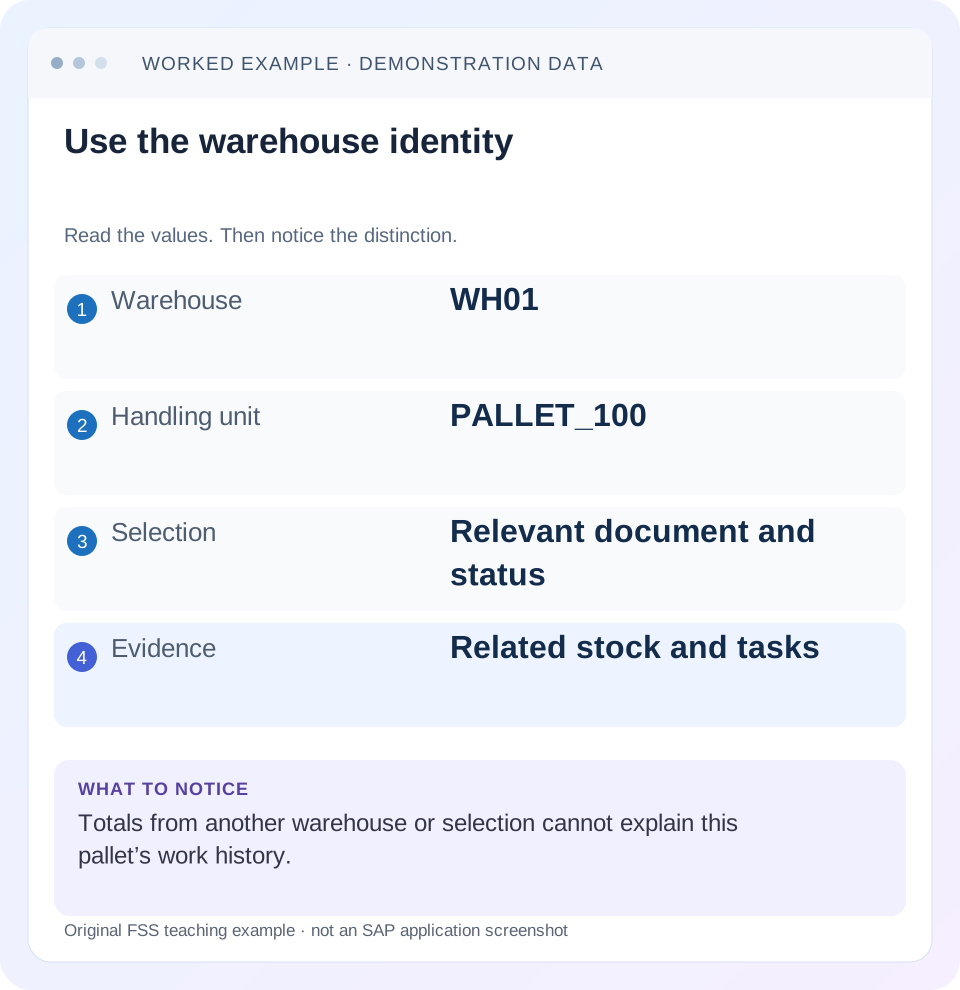
Read the example values
- Warehouse
- WH01
- Handling unit
- PALLET_100
- Selection
- Relevant document and status
- Evidence
- Related stock and tasks
Words you’ll meet in this guide
- Bin
- A named warehouse storage location.
- Handling unit
- An identified package of goods and packaging.
- Confirmation
- A record that relevant warehouse work was performed.
- Stock
- The goods recorded as held in a given business and location context.
- EWM
- Extended Warehouse Management: SAP’s application for warehouse processes.
Preview the practical steps
SEE THE CONNECTION
See it in a simple example.
A small example to make the idea concrete.
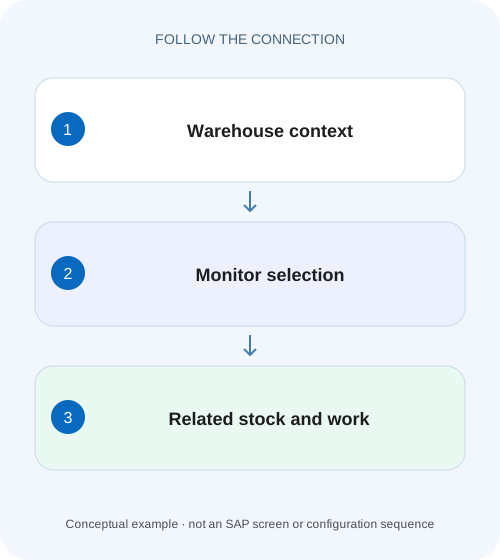
Trace a pallet of incoming components
A pallet of purchased components has not reached its intended bin, and the plant warehouse needs one view of stock, documents and work.
Use the monitor to connect objects, not just compare totals
The EWM warehouse management monitor, /SCWM/MON, brings stock, warehouse documents, tasks and operational exceptions into a central investigation context.
Scope and prerequisites
The guide concerns EWM warehouse-monitor concepts in supported embedded/decentralized landscapes.
Understand hierarchy, selections and methods
SAP documents a node hierarchy representing different object classes.
Trace a pallet of incoming components
A pallet of purchased components has not reached its intended bin, and the plant warehouse needs one view of stock, documents and work.
Follow the relevant monitor objects and statuses before assigning the missing step to receiving or warehouse execution.
| Reader | Business question | Evidence to carry forward |
|---|---|---|
| Plant stores, warehouse and materials teams | Trace a pallet of incoming components | Follow the relevant monitor objects and statuses before assigning the missing step to receiving or warehouse execution. |
01 Use the monitor to connect objects, not just compare totals
The EWM warehouse management monitor, /SCWM/MON, brings stock, warehouse documents, tasks and operational exceptions into a central investigation context. Its result depends on warehouse number, monitor definition, selected node and filters. Two users looking at different contexts can see different valid results. [1] [2]
The practical goal is to explain one warehouse object through its stock and work relationships. This tutorial follows PALLET_100, apparently missing from its planned destination, and shows how a current location, open task and work package explain the situation. It also distinguishes display-selection problems from underlying application-data problems.
02 Scope and prerequisites
The guide concerns EWM warehouse-monitor concepts in supported embedded/decentralized landscapes. Node hierarchies, custom monitors, methods and authorizations vary by release and warehouse configuration. Historical library documentation supports the central model; current methods must be checked against the installed release.
Collect warehouse, monitor name, node, selection criteria, observation time and representative product/HU/document/task identifiers. Obtain authorized display access to the relevant stock and work objects. Review a method’s purpose before executing it: some monitor actions create, confirm, cancel or otherwise process business work.
This tutorial begins with read-only investigation. Proposed corrections or confirmations require the supported operational process and actual physical evidence; the presence of a monitor button is not proof that an action is appropriate.
03 Understand hierarchy, selections and methods
SAP documents a node hierarchy representing different object classes. A stock node answers a different question from a warehouse-task or delivery node. The same HU can be related to several objects with different statuses, so navigation should preserve their identities rather than flattening them into one “complete” flag. [1] [3]
Warehouse and monitor definition are part of the query. A custom monitor can expose different nodes or selections from the standard monitor. Record the definition alongside the node title; a label copied into a ticket may not identify the same function across warehouses.
Methods are another layer. A display method can expose detail, while a processing method can change business state. SAP’s method reference includes task confirmation/cancellation and wave-processing actions. Read the actual supported method description and permissions before treating the monitor as a passive report.
04 Worked case: PALLET_100 has not reached its target bin
The fictional warehouse WH01 expects HU PALLET_100, containing twenty PC of PROD-M, in destination A-01. An operator searches A-01 and reports the pallet missing. The investigation starts with the HU identity in WH01 rather than a product total across all warehouses.
Current stock evidence locates PALLET_100 in receiving/staging bin REC-01. The related planned warehouse task WT-A moves it to A-01, and the task is still open in work package WO-A. Creation of WT-A established intended work; it did not prove physical arrival at A-01.
The next action is to establish whether the pallet is physically still at REC-01 and why execution/confirmation is outstanding. Creating another putaway task or adjusting stock at A-01 would not explain the existing chain. After the authorized actual movement/confirmation, the same HU and task references should support the new location.
| Object | Observed context/state | Conclusion |
|---|---|---|
| Warehouse/monitor | WH01 / selected definition | Scope for the investigation |
| HU PALLET_100 | 20 PC PROD-M | Specific packed population |
| Stock location | REC-01 | Current recorded position in fixture |
| WT-A | REC-01 → A-01; open | Planned movement, not completed arrival |
| WO-A | Contains WT-A | Execution package to investigate |
| A-01 search | No PALLET_100 yet | Consistent with open putaway task |
05 Begin with the object that matches the complaint
For a missing pallet, use the HU and warehouse as the initial identity. For a stock-allocation problem, use product/stock key and open tasks. For a delivery not progressing, use the warehouse request/delivery and its document flow. Choose the object from the symptom rather than always opening the same favorite node.
Capture exact filters, including status/date/HU/product restrictions and any layout filter. A task with a posting/confirmation date outside the chosen interval can be absent for a selection reason. An HU in another warehouse cannot explain WH01’s work without an actual transfer relationship.
Use a known object as a sentinel. If PALLET_100 is absent, search its exact authorized identity under a controlled broader scope before deciding that the underlying record is missing.
06 Follow stock, task and package in sequence
The sequence creates a reproducible explanation for PALLET_100 while avoiding accidental operational changes.
Record monitor context
Open the supported monitor for WH01 and retain definition, node, filters and observation time.
Expected observation: Another authorized analyst can repeat the selection.
Find the HU stock evidence
Locate PALLET_100 and read its current bin, contents, quantity/unit and stock identity.
Expected observation: The current recorded position is REC-01 in the fixture.
Inspect related work
Find WT-A and WO-A through supported navigation/search, retaining source/destination and actual states.
Expected observation: A planned destination is distinguished from confirmed location.
Read the execution issue
Inspect assignment, applicable queue/resource context and any exception/message for the open work.
Expected observation: The missing step has a specific owner/cause to investigate.
Verify after authorized completion
Refresh the original objects after the real movement and supported confirmation.
Expected observation: Stock, task and package evidence agree without a duplicate task.
07 A missing row can be a monitor issue or an object issue
SAP’s shipping-monitor support guidance distinguishes monitor-function problems from underlying Shipping and Receiving object problems. If an inconsistent TU is reproduced in its business object, that differs from a monitor filter failing to select correctly. The same diagnostic principle helps keep investigations focused. [2]
Compare the relevant standard and custom monitor where supported and authorized, using identical warehouse/object criteria. If the object appears in the standard view but not the custom view, inspect selection/node configuration before changing the business data.
If both views show the same incorrect HU location, investigate actual movements and confirmations. Changing a layout cannot correct a genuinely wrong posting, just as a new stock posting cannot repair a hidden-result filter.
08 Time filters can include status-dependent behavior
Do not assume every node applies a time horizon as a simple date-column comparison. SAP’s shipping-monitor guidance describes active transportation units remaining visible despite dates outside the selected horizon in its documented context, while other TU states are filtered differently. [2]
If a TU looks “too old,” inspect its actual active/completed/planned state and the node’s documented selection semantics. This is a specific shipping-monitor behavior, not a rule for every warehouse node.
For PALLET_100, retain the task and observation timestamps and ask which date the selected node actually uses. A current open task and a historical confirmed-task list can legitimately have different populations. The filter definition belongs in the support evidence.
09 Methods can change the situation you are investigating
A confirmation or cancellation method changes work state; a wave-release method can initiate new work. Selecting one merely to see what happens can destroy the clean before-state and create duplicate or unsupported processing. [3]
Before any authorized action, establish the intended business event and existing references. For WT-A, confirm that PALLET_100 actually moved and that the supported confirmation records the correct destination and quantity. A green task after an unsupported confirmation would be misleading evidence.
After action, verify underlying documents and stock rather than only the monitor’s color or row count. A disappearing alert can mean the selection changed or the object left that status; it is not by itself proof that the business outcome is correct.
10 Connect integration and warehouse evidence when needed
If the complaint concerns ERP versus EWM, retain both system references and the relevant integration state. A local EWM task or stock change does not establish that every connected inventory or delivery update completed.
For an inbound pallet, distinguish receipt-related posting, unloading/staging and final putaway according to the actual warehouse design. A backend goods receipt can coexist with open EWM execution. Conversely, physical movement without the expected posting needs its own investigation.
Use the monitor to locate the relevant objects and messages where supported, then inspect the actual application evidence. Do not make the monitor’s aggregate quantity serve as a substitute for the integrated document chain.
11 Troubleshooting decisions
Start with context and object identity, then classify the failure. This prevents a display issue from becoming an unnecessary stock correction.
| Observation | Question | Next evidence |
|---|---|---|
| Colleague sees another result | Same warehouse/monitor/node/filter/time? | Complete selection definitions |
| HU absent from target bin | Where is it recorded and is movement confirmed? | HU stock and source/destination WT |
| Task exists, worker sees no work | Is package/assignment/queue suitable? | WO/resource context and actual message |
| Custom view omits known object | Does standard view reproduce it? | Identical authorized selection comparison |
| Old TU remains in date horizon | Does active-state selection explain it? | Specific shipping-node semantics |
| Alert vanished after method | Did business state actually finish correctly? | Underlying stock/documents and saved result |
12 Common mistakes in monitor handovers
Do not send only a screenshot cropped to a quantity. Include warehouse, object identity, node and relevant filters. Do not call a planned task destination the current stock location without confirmation evidence.
Do not recreate work because a custom monitor omits it. Search the underlying task/request and compare the supported standard context first.
Do not mark a case resolved merely because a node is empty. Explain where PALLET_100 is, what WT-A did and what remains in WO-A. The result should survive another analyst opening the actual documents, not depend on one temporary view.
13 Verification exercises and questions
For the positive worksheet check, connect PALLET_100 twenty pieces at REC-01 to open WT-A toward A-01 and WO-A. Explain why the A-01 absence is consistent. After a legitimate training movement, verify the same identities and actual confirmation.
For the negative check, search another warehouse or only confirmed tasks and conclude the HU/work is missing. Identify the selection error. Then confirm WT-A without physical movement in a worksheet and explain why a green status would not prove reality.
For boundary checks, compare custom/standard monitor, active TU horizon behavior, a partial/difference confirmation and integration delay. Does the monitor replace physical verification? No. Does every method only display? No. A useful handover includes context, current stock, actual work state, exact exception and verified next action.
Related services and next steps
Primary sources
Found this useful?
Share this guide with your network, or leave a like.
Your like is saved in this browser.