SuccessFactors role assigned, but data missing? Check the target population
A manufacturer's HR user has an assigned role but cannot see a factory employee expected within their responsibility.

Source review:
START HERE · NO PRIOR TOPIC KNOWLEDGE NEEDED
What it is. Why it matters.
A SuccessFactors permission role groups allowed actions. The target population determines whose records those permissions apply to, so a role alone does not explain the visible employee scope.
Completely new to SAP?
Manufacturers use SAP to connect work such as buying components, recording inventory, planning production, shipping equipment and accounting for costs. SAP S/4HANA is an enterprise resource planning system: it connects these activities through shared business data.
SAP HR applications manage employee-related records and processes. A record’s subject, validity dates and access permissions all matter before it is read or changed.
A transaction code, or t-code, is a shortcut to a task in classic SAP GUI. Fiori apps provide another way to work. Names and screens depend on the product and release; you do not need a live system to learn the concepts in this guide.

Scope and source-review notes
Scope and evidence
Source review by FAST SAP SOLUTIONS® editorial. This badge describes our editorial review; it does not represent SAP certification or independent endorsement.
SuccessFactors platform RBP access/target populations and current troubleshooting tools. Specific product permissions, historical-data, multiple-employment and MDF/Compensation behavior require their documented tenant scope.
Reviewed relevant official SAP indexed documentation excerpts on 14 November 2026. Examples, identifiers, amounts and expected observations are illustrative; no customer SAP execution was performed. Transaction availability, labels and results depend on the installed release, deployment and local configuration.
A MANUFACTURING EXAMPLE
Scope HR access to the intended plant population
Which employees are in scope?
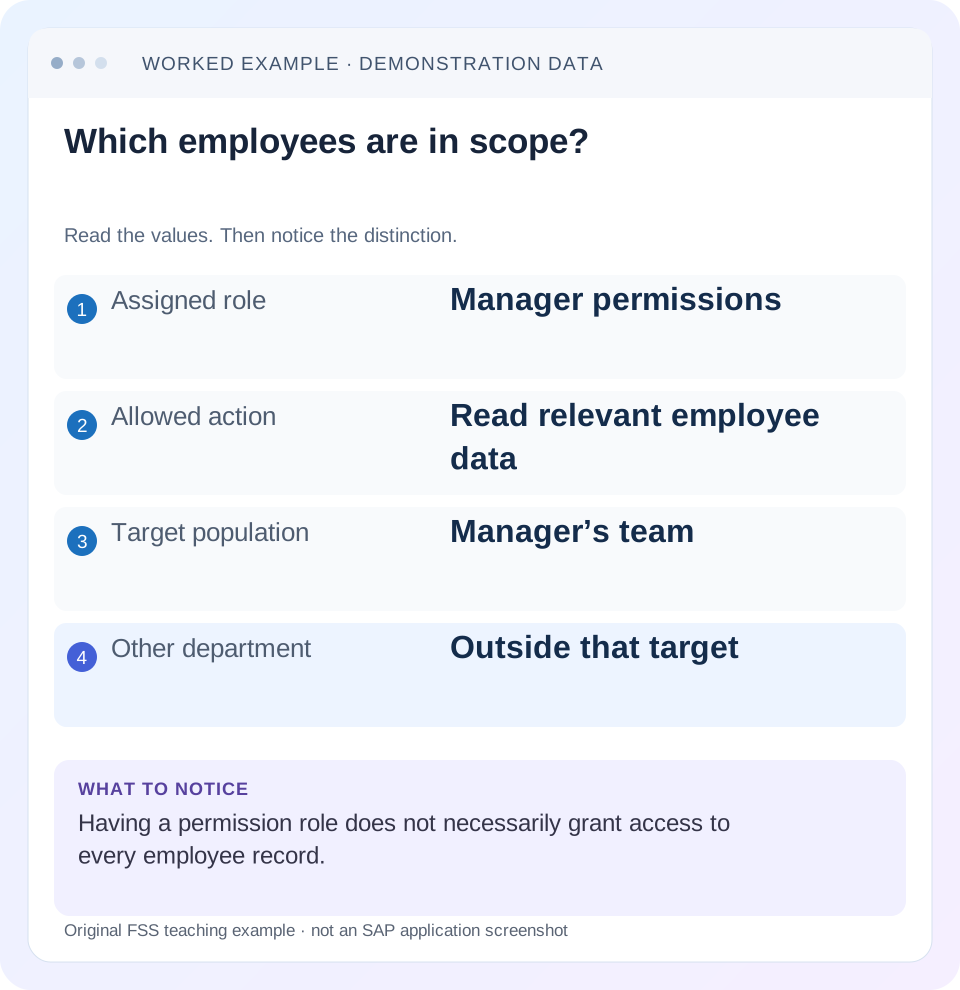
Read the example values
- Assigned role
- Manager permissions
- Allowed action
- Read relevant employee data
- Target population
- Manager’s team
- Other department
- Outside that target
Words you’ll meet in this guide
- Employee record
- Stored information about a person’s employment.
- Validity
- The dates during which a record applies.
- Payroll
- The process that calculates an employee’s pay.
- API
- A defined interface through which programs exchange data or request actions.
Preview the practical steps
SEE THE CONNECTION
See it in a simple example.
A small example to make the idea concrete.
Scope HR access to the intended plant population
A manufacturer's HR user has an assigned role but cannot see a factory employee expected within their responsibility.
A role name is only part of an access decision
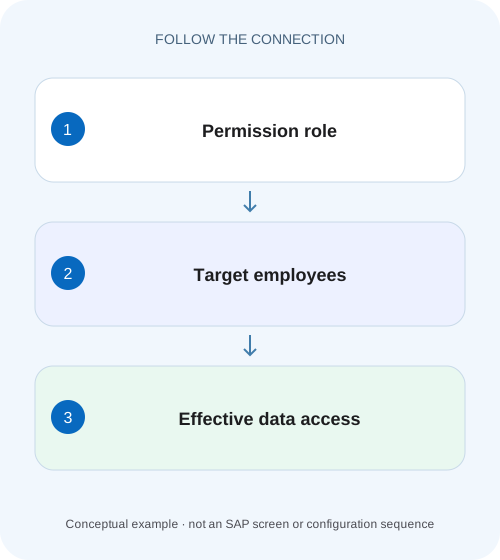
SuccessFactors Role-Based Permissions distinguishes the permissions in a role, the access population receiving those permissions and the target population whose data can be accessed.
Understand the four objects in the relationship
A permission role is a collection of allowed tasks.
Worked case: Canada HR access with one excluded employee
Fictional user U100 belongs to access group HR_CAN.
Scope HR access to the intended plant population
A manufacturer's HR user has an assigned role but cannot see a factory employee expected within their responsibility.
Compare permissions and target-population membership before widening access to unrelated employee data.
| Reader | Business question | Evidence to carry forward |
|---|---|---|
| Plant HR, time and payroll application teams | Scope HR access to the intended plant population | Compare permissions and target-population membership before widening access to unrelated employee data. |
01 A role name is only part of an access decision
SuccessFactors Role-Based Permissions distinguishes the permissions in a role, the access population receiving those permissions and the target population whose data can be accessed. If a user has the expected role but cannot see one employee, identify both the acting user and the target employee, then the exact action. Expanding the role’s permissions before checking those relationships can solve the wrong problem. [1] [2]
This tutorial is for RBP administrators and Employee Central/application support teams. It uses current documented RBP tools and keeps product-specific permissions and exceptions explicit. You need the appropriate administrator view/troubleshooting access and authorized test identities. The role/group names and employees below are fictional; no tenant role assignment, data access or permission change was executed for this article.
02 Understand the four objects in the relationship
A permission role is a collection of allowed tasks. The access population identifies who receives them. The target population identifies whose information those tasks apply to where the permission supports targets. A role assignment relates those pieces and can include additional applicable criteria, duration or status in the documented experience. [1] [3]
Write the business rule in this form: “User U100 may read the specified current Job Information for employees in the approved Canada target group.” That sentence separates actor, action and data scope. It does not silently include edit, import, every field, every historical date or employees in another country. Each extra capability needs its actual configured permission and supported product semantics.
03 Worked case: Canada HR access with one excluded employee
Fictional user U100 belongs to access group HR_CAN. Role R_JOB_READ contains the selected supported read permission for the required job-data view, assigned to HR_CAN with target group EMP_CAN. E100 is an active employee meeting the declared Canada target criteria; E200 is an active employee outside those criteria. Assume no other assignment grants this task and the source records exist.
The intended result is that U100 reads the permitted E100 information and cannot read the same task/data for E200. E100’s presence is a positive test; E200’s exclusion is an equally important negative test. A menu being available establishes neither result by itself.
| Actor and task | Target | Expected under declared assignment |
|---|---|---|
| U100; permitted read | E100 in EMP_CAN | Allowed for specified data/action |
| U100; same read | E200 outside EMP_CAN | Not granted by this assignment |
| U100; edit | E100 | Read role does not establish edit |
| U200 outside HR_CAN; read | E100 | Not granted by this assignment |
| U100; other product/API | E100 | Requires its actual permission/process checks |
04 Dynamic groups require actual membership evidence
SAP documents static and dynamic permission groups. Dynamic criteria can use attributes such as department, country/region or job code, with available attributes dependent on configuration. A transfer can therefore change membership without the role’s name changing. Read the actual current group criteria and membership rather than guessing from a user’s description. [2]
For E100, record which attributes the group evaluates and whether E100 actually appears in its membership at the observation time. If a future country or department change exists, do not assume group evaluation uses the same as-of date as an unrelated Job Information API query. Verify the documented group/data behavior and actual membership. The role name cannot explain a missing target after a data change.
05 Distinguish granted-user membership from target membership
If U100 leaves HR_CAN, the problem concerns who receives the role. If E100 leaves EMP_CAN, it concerns whose data the role covers. Both can cause missing access while the role definition remains unchanged. A screenshot showing the role exists does not establish either membership. [2] [3]
Use a small worksheet listing U100’s access membership and E100/E200’s target membership separately. Where the supported assignment uses manager/direct-report or other relationships instead of a static group, inspect the actual relationship and depth criteria. A person being in the same department is not proof of being a direct report, and a manager title does not establish the configured relationship.
06 Use RBP Troubleshooting for the specific permission and target
Current SAP documentation describes RBP Troubleshooting with User Role and Permission Search, Target Population Search and Compare Roles. Target Population Search can compare employee access users for a supported permission and optionally a specific target user. It exposes contributing roles and assignments rather than forcing the analyst to infer access from role names. [4] [5]
For the worked case, use U100 as access user, select the actual target-supporting permission and E100 as target, then compare E200. Inspect Target Users and View Role Assignments where supported. The documented tool has limits, including Compensation-role exclusions and MDF action versus field-level-override distinctions. An unsupported search is not evidence that the permission does not exist.
07 Check action and field scope as well as employee scope
A user can have permission to open a profile but lack the relevant data/field action. Read and edit can differ, as can current and historical record access under product-specific permissions. Diagnose the exact operation that fails rather than reporting only “employee missing.”
For E100, compare opening the profile, viewing the requested job-data field and performing an edit as separate tasks. If profile access works but the field is hidden, inspect that field/action and any applicable product layer. Widening EMP_CAN to Everyone would not repair a missing field permission and would expand unrelated employee scope. Keep each candidate correction tied to the failed relationship.
08 Inspect every contributing assignment before concluding exclusion
The absence of E200 from one assignment’s target does not prove that U100 has no access through another role or assignment. Use the troubleshooting result to identify all relevant grants for the specific permission/target. A narrowly scoped role can coexist with a broader administrative role.
For a negative test, first confirm the declared assumption that no other assignment grants the task. If E200 is unexpectedly visible, determine which role/assignment supplies it before removing or changing R_JOB_READ. Otherwise the narrow role can be blamed for access granted elsewhere. Recheck the exact task after a reviewed change because removing one grant may leave another effective route.
09 Data existence and effective date form a separate branch
An empty profile card or API result can reflect no record for the selected employee/date, an inactive/employment context, filters or permission scope. Have the authorized data owner confirm the relevant record exists before treating absence as a security defect. A broad administrator seeing some other date is not a like-for-like comparison.
For E100, align entity/card, employment identity, effective date and field before comparing users. If the December job record exists but the user asks for November, the correct value can differ without a permission issue. If access is legitimately restricted, do not export the hidden record into a support ticket to prove it exists; retain minimal protected references and the owner’s scoped confirmation.
10 A practical RBP investigation sequence
Use a test matrix and the supported tools to turn a broad access complaint into one identifiable relationship.
Define actor, task and target
Record U100, the exact read/edit operation, E100 and relevant employment/date/field.
Expected observation: The access question is reproducible.
Confirm source data and UI/API context
Verify the record exists on the requested basis through an authorized owner.
Expected observation: Missing data is separated from denied access.
Inspect access and target assignments
Read role permissions, U100 membership, E100 target membership and applicable criteria.
Expected observation: Each side of the role assignment is explicit.
Use current troubleshooting
Search the supported permission/target and inspect every contributing role assignment.
Expected observation: The effective grant path is observed.
Verify approved change with controls
Test E100 read, E200 exclusion and edit restriction as applicable.
Expected observation: The correction restores the intended task while preserving boundaries.
11 Troubleshoot the first missing or excessive grant
A role-level change is only one possible resolution. Use actual membership and action evidence to choose the correct layer.
| Observation | Inspect | Likely branch |
|---|---|---|
| Role exists; U100 has no access | Access population/assignment status | Role definition is not user membership |
| E100 missing but E200 visible | Target criteria and other grants | Population or contributing assignment differs |
| Profile opens; field hidden | Field/action permission | Menu visibility is not field access |
| Access changes after transfer | Dynamic group/relationship membership | Attribute change can alter population |
| Expected tool result absent | Tool scope, selected permission and update state | Unsupported/incomplete search is not definitive |
| Read works; edit fails | Action-specific grant | May be an intended boundary |
12 Verify update timing without inventing a fixed delay
After a role/group change, inspect the actual saved assignment and relevant update/troubleshooting state before repeatedly editing. SAP’s role-search guidance notes that backend update activity can affect expected results. Do not promise that every change propagates after one fixed number of minutes.
Record change time, observation time, fresh test context and actual result. If the old behavior persists, determine whether membership, assignment state, another grant or product-specific processing explains it. Repeatedly broadening roles while waiting for a prior update can create excessive access whose source becomes difficult to reconstruct. Verify one concrete change against the same actor/task/target matrix.
13 Retire outdated diagnostic instructions
SAP documents that the old View User Permissions admin tool was deleted on 16 May 2025 and replaced by RBP Troubleshooting. A historical screenshot or article can therefore name a tool no longer available in the current tenant. Use the documented replacement rather than requesting a role to reveal a removed function. [6]
Other historic tools and product-specific views can still appear in documentation with limited scope. Identify the current tenant release and actual tool capability before treating a missing button as missing access. For this lesson, the recommended diagnostic path is the current RBP Troubleshooting feature with its documented target-permission limits, not a universal legacy menu path.
14 Frequently asked questions and acceptance checks
Does every permission need a target population? No; inspect the permission’s supported scope. Does the same role name mean two users see the same employees? Their assignments, memberships and relationships can differ. Can Everyone be used as a quick diagnostic? A concrete supported search and scoped test provide evidence without broadening business access.
The final positive check is U100’s required read on E100. Negative checks preserve E200 exclusion, U200’s lack of the grant and any intended edit restriction under the complete assignment set. Boundary checks cover a target transfer, multiple employments or a supported historical-data restriction as relevant. These are proposed tests, not executed tenant access. Use effective-dating and import lessons when the underlying employee history or group-driving attributes changed.
Related services and next steps
Primary sources
- Role-Based Permissions Experience for Administrators | SAP Help Portal
- Permission Groups | SAP Help Portal
- Assigning a Permission Role | SAP Help Portal
- RBP Troubleshooting | SAP Help Portal
- Searching for Target Population | SAP Help Portal
- Replacement of View User Permissions with RBP Troubleshooting | SAP Help Portal
Found this useful?
Share this guide with your network, or leave a like.
Your like is saved in this browser.